What Bookly does: your page, booking, CRM, finances

ELROI
One place instead of all those tabs
A client DMs you: “Do you have an opening on Saturday?” You scroll back through your messages for bookings, hunt for their number in your notes, send a link to your prices, and log the payment in a notebook later. That’s a lot of tabs, and the gaps between them are where clients and money get lost. Here’s what Bookly does today, and what it doesn’t do yet.
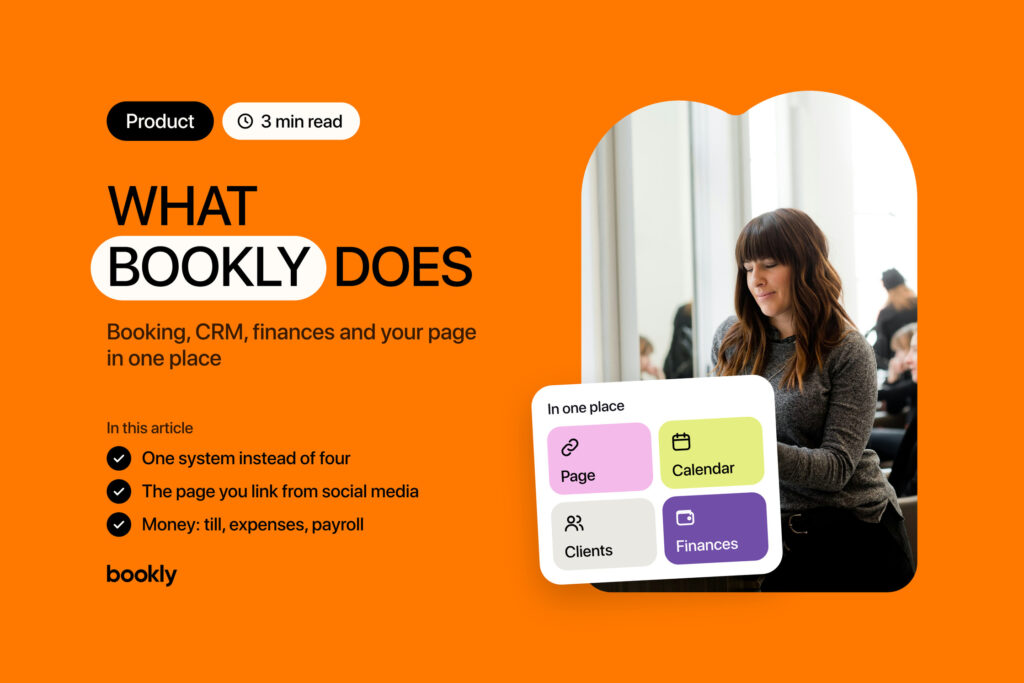
Bookly keeps your booking page, CRM and finances in one place. Your page with links, where clients book on their own. The calendar, where the booking shows up. The client card with their history. And “Finance”, where a payment becomes income as soon as you mark it. Who Bookly is for: specialists who work alone, and therapists, tutors or trainers without a website of their own. If you have a team, there’s the Team plan. The Basic plan is free forever, no card needed, with up to 30 bookings a month.
Your page: what clients see first
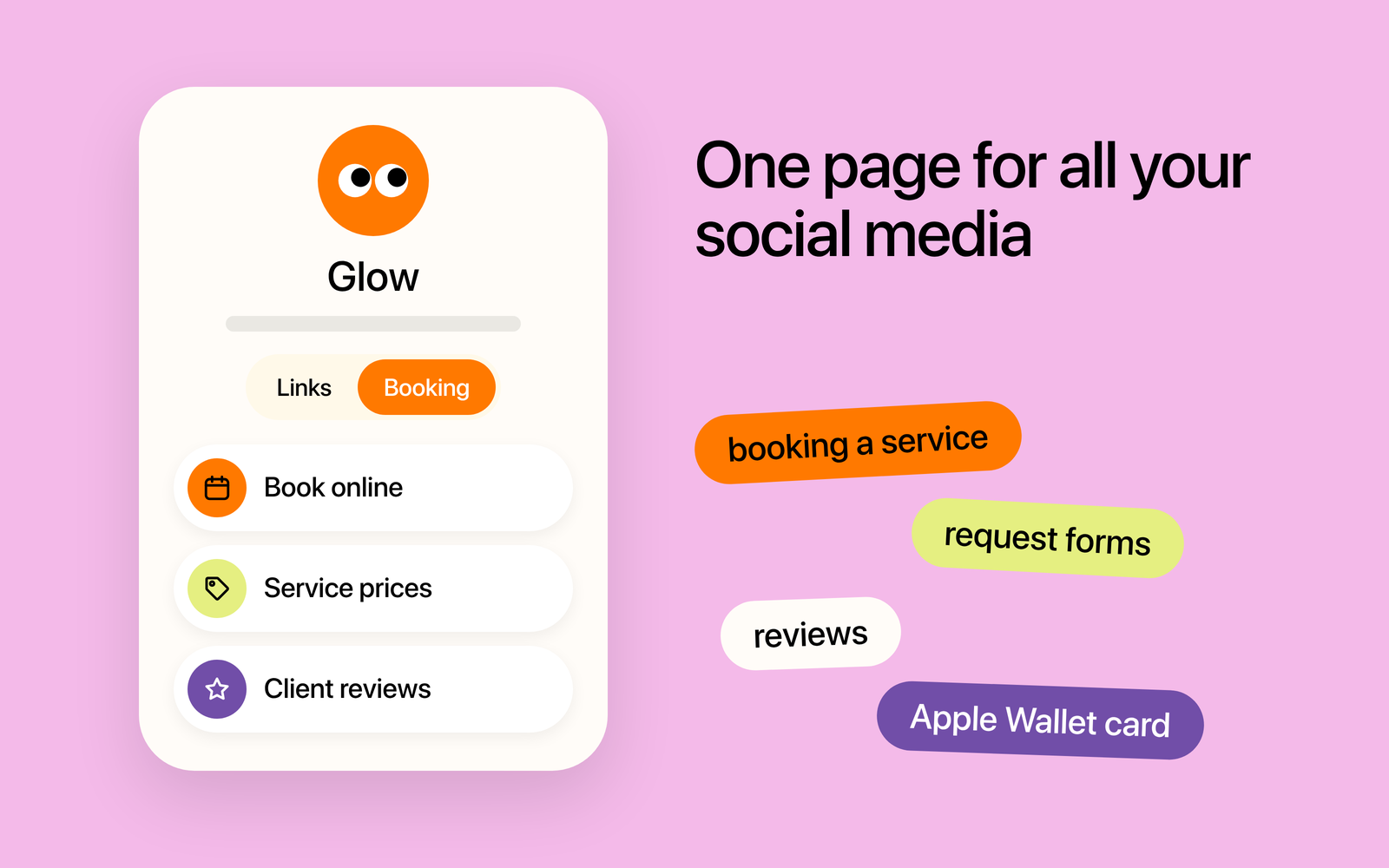
One link in your bio, and a client sees your services, prices and a booking button right away. You build your page from blocks: links to 53 social and messaging apps, photos of your work, reviews. The address looks like bookly.me/your-name. You can print the QR code for your door or a business card, and short links show you the number of clicks.
A business page gives you:
- a “Booking” tab: clients pick a service with its duration and price, a specialist (on Team) and a free slot;
- forms as pages of their own, with responses going to “Requests”;
- reviews with ratings, photos and your replies;
- digital products: you take the money the way you always have, and the buyer uses a code to get the file;
- an Apple Wallet business card: clients scan the QR code on your phone.
Calendar and bookings
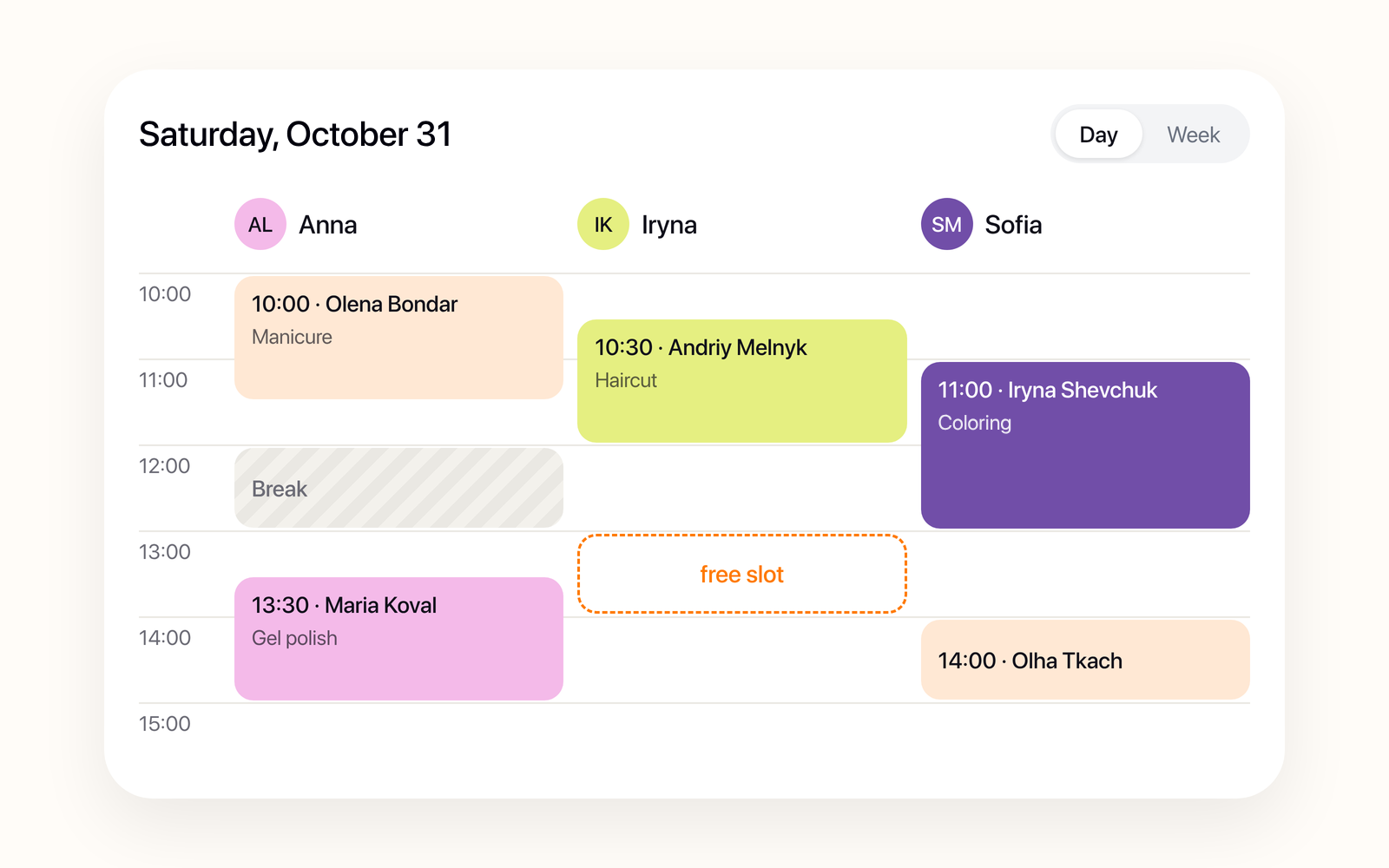
You wake up to a new booking in your calendar, not a pile of DMs. It arrives marked “New”: confirm it, or it cancels itself shortly before the start time. Or pick “Automatically confirm bookings”: then clients get no code and no automatic texts. A specialist can’t be double-booked. The calendar shows the day or the week: bookings, breaks, working hours and free slots. When you change a booking, the CRM offers to text the client. Clients can’t move or cancel a booking through a link: they message you, and you change it.
Your schedule is weekly, with “Specific dates” for exceptions. It all lives in “Business” → “Working hours”. Online booking only offers free time, so breaks and time off stay out of it. On the Team plan, each specialist has their own column and schedule. Basic and Pro have one specialist. Clients get a text reminder, by default the day before. Press “Turn on reminders” in “SMS center” and confirm new bookings. On Basic, you buy texts separately. On Pro and Team, bookings also show up in Google Calendar or iCloud (one-way sync).
Clients, requests and reviews
A client card creates itself with the first booking. It holds their visit history, “Last visit”, “Total spent” and notes: text and up to 10 photos of your work. “Requests” is a board with statuses, from “New” to “Booked”. Form responses and product orders land there on their own, and you add a DM by hand. That way a request on the board doesn’t get lost between the first message and the booking. A booking from your page skips the board and goes straight to your calendar. Reviews build up on your page: turn on “Review request” in “SMS center”, and clients get it after a visit marked “Completed”. The replies are yours to write.
A client database isn’t a list of phone numbers. Before you message someone, you open their card and see when they came in and for which service. The conversation stays yours.
Money: payments, expenses, payroll
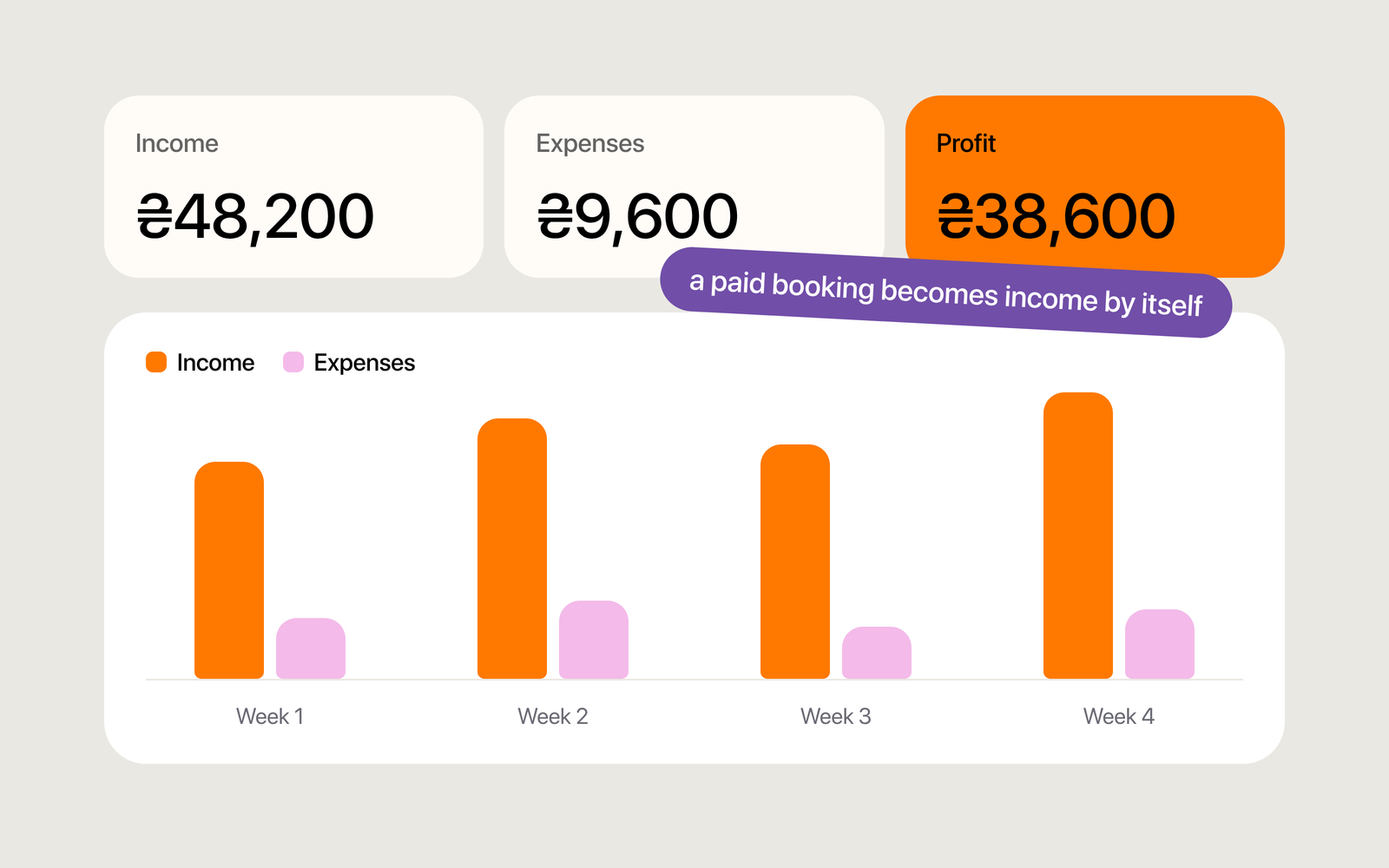
You mark a payment in the booking: “Cash”, “Card” or “Terminal”. It then counts as income in “Finance”. You add expenses by category, and recurring ones like rent add themselves. Pick a period to see income, expenses and profit. Plenty of people keep a separate spreadsheet just for this. Here the numbers sit next to your calendar, so they match the visits you mark as paid.
Pro and Team add a “Professional” mode: an operations journal, reports, and exports to Excel, CSV and PDF. On Team, Bookly also calculates your specialists’ pay at the rate you set: a percentage of the service, a fixed amount per booking, or a monthly salary. Payouts don’t go through Bookly: you hand over the money, and the payout stays in “Finance”, under “Operations”. All of this is for your own records, not official reporting.
Team and access
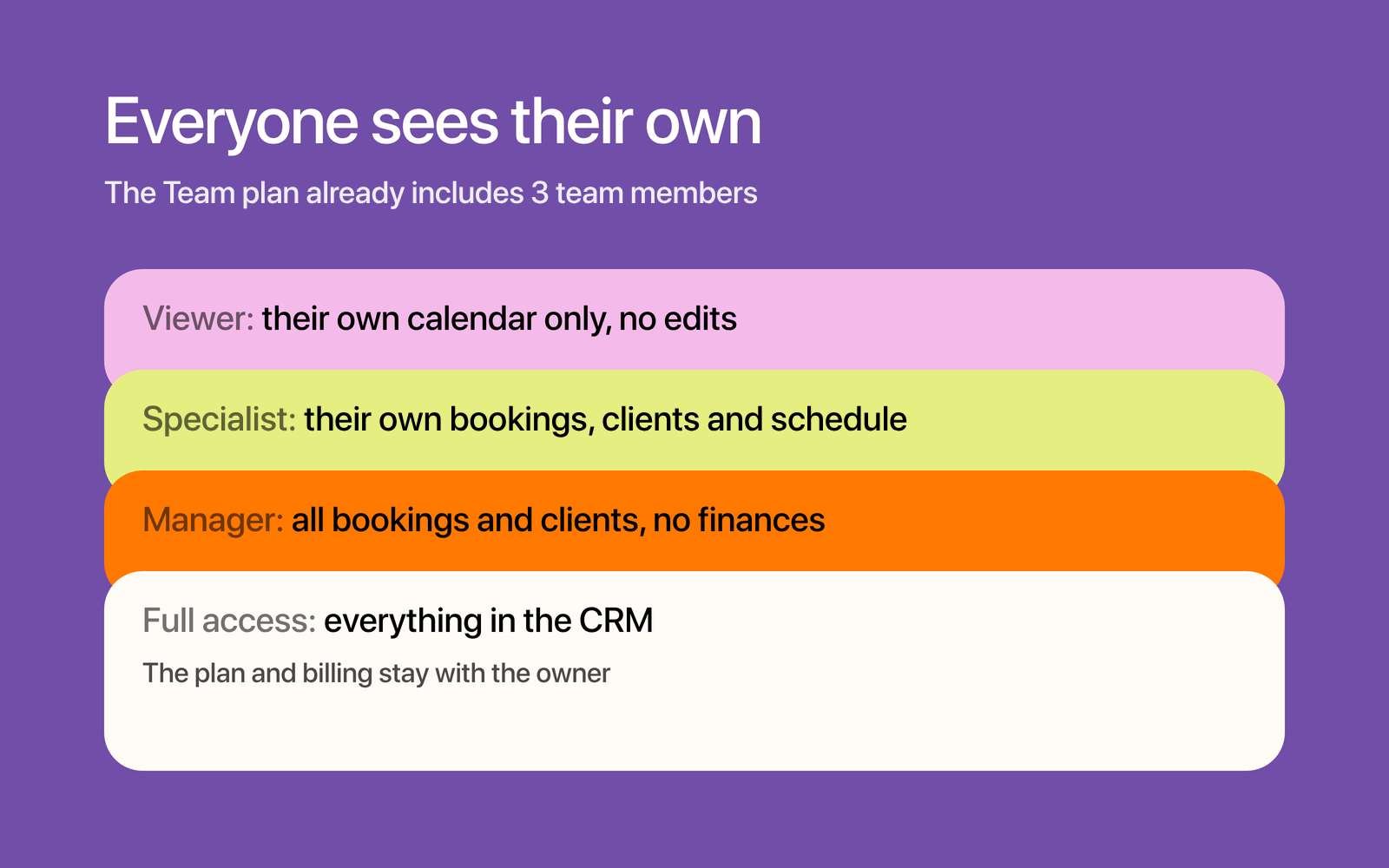
On Basic and Pro, you’re the only one who signs in to the CRM. On the Team plan, colleagues get their own sign-in: the plan already includes 3 team members, and you pay for each one after that. You invite them by email or link. Their access level decides who sees what. “Viewer” sees only their own calendar and can’t edit it. “Specialist” works with their own bookings, clients and schedule. “Manager” runs all bookings and clients, without finances. “Full access” opens everything in the CRM except your plan and billing. So you don’t have to give everyone access to everything or do it all yourself.
What Bookly is building next
Honestly, here’s what isn’t there yet:
- a Telegram bot: chats with your clients on Telegram;
- Bookly doesn’t take payments online: when a client sends you a deposit, you add it by hand;
- an iPhone app: for now, your account opens in your phone’s browser.
We’re saying this up front because promising what isn’t there is the fastest way to lose your trust. When the bot or the app ships, we’ll add it here.
Enjoyed the article?
Share it with colleagues or friends. It might save them a few common mistakes.