Mon
1
Choose date & time
›General


CRM


Admin


Calendar
 Anna Lewis
Mon
1
Tue
2
Wed
3
Thu
4
Fri
5
Sat
6
Sun
7
Mon
8
Tue
9
Wed
10
Thu
11
Fri
12
Sat
13
Sun
14
Mon
15
7
8
9
10
Break
Break
Break
Break
Cosmetologist consultation
Iris Parker
Status
New bookingPrice
€30
7:00 - 8:00
Nail strengthening
Victoria Lane
Status
New bookingIncome
€12
7:00 - 8:00
Facial cleansing
CancelledPrice
€20
8:00 - 8:30
RF face lifting
Anna Lawson
Status
New bookingIncome
€80
8:30 - 10:00
Lip contouring
Sophia Mills
Status
Repeat bookingIncome
€160
8:00 - 9:30
Cosmetologist consultation
Alina Summers
Status
ConfirmedIncome
€35
9:00 - 10:00
Biorevitalization
ConfirmedIncome
€420
11:00 - 12:30
RF face lifting
Iris Parker
Status
New bookingIncome
€70
13:00 - 14:00
Visible hours


Emma Johnson
PersonalHair extension specialist
Helping create natural volume and length without compromise.
174 clicks


Link grid


Employee schedule
Set up working days and hours for this employee.

Amelia
Dentist • 40 hours / week
Working hours
Breaks
Time off
Weekly schedule
Monday
10:00
18:00
Tuesday
10:00
18:00
Wednesday
10:00
18:00
Thursday
10:00
18:00
Friday
10:00
18:00
Saturday
Day off
Sunday
Day off
Weekly total
40 h
Break
Monday - Friday
1 hour
13:00 – 14:00
Cleaning
Monday - Friday
30 minutes
18:00 – 18:30
Breaks are automatically blocked in the calendar. Clients can't book time during breaks.
Leave balance
Total
24
days
Used
7
days
Remaining
17
days
Pending
1
request
Annual leave
Mar 24 — Mar 28, 2026
Approved
5 days
Sick leave
Feb 10 — Feb 11, 2026
Approved
2 days
Personal day
Apr 15, 2026
Pending
1 day
Apply to all working days
Monday through Friday will share the same schedule.
Cancel
Save
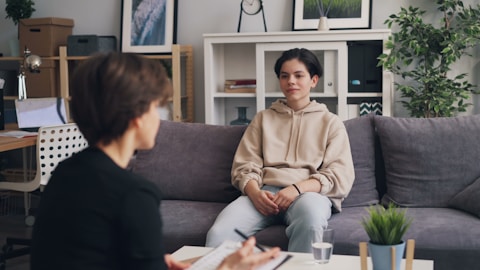
Psychologist consultation
€60
Booking payment
Psychologist consultation
€60


Pay €60
Service performance




€4,290
total revenue
Lip contouring
RF lifting
Facial cleansing
Other
Services
Bookings
Revenue

Lip contouring
14
€1,590
RF lifting
18
€1,350
Facial cleansing
24
€840
Consultation
17
€510
New clients
+24
+16%
New booking
A client booked a service through the widget
SMS
Your booking is confirmed!
10:30
Reminder
A friendly reminder about your appointment tomorrow at 15:00. Have a great day!
15:00
After visit
Thank you for your visit! Please take a moment to leave a review🙏
18:30
SMS
Pending
Reminder
Pending
Review
Pending

How to create a Link-in-Bio page for creators in 2026
How to create a Link-in-Bio page for creators in 2026
How to create a Link-in-Bio page for creators in 2026
How to create a Link-in-Bio page for creators in 2026
Need help?
Find the answer in the help center or write to us.
 Design & Customization
The “Design” section gathers the whole look of a Bookly page in one place: theme, background, header, text, colour and buttons. You see every change at once in the phone preview next to it, and save when the result feels right.


14 days. No card. No commitment
 What you can set
The panels of the “Design” section sit next to the phone preview. Click an option and the page in the preview changes at once, before anything is saved.

Theme
“Ready-made presets” for the whole page at once: Sunset Beach, Mono Space, Moonlight Purple, Frosted Ocean, Espresso Glow, Rosé Blue and Forest Tide. A theme sets the background, the card and text colours and the accent, and each can be changed on its own afterwards.

Background
“Fill”, “Gradient”, “Blur”, “Pattern”, “Image” or “Video”. Photos and videos get “Effects”: “Blur”, “Tint” and “Noise” with the “Intensity” slider.

Header
“Link Title”, “Bio Text”, “Job Title” and “Title size”. The “Personal” layout with “Classic”, “Portrait”, “Side”, “Banner” and “Shape”, or “Business” with the contacts from the CRM.

Text
“Ready-made presets” of font pairs in the “Classic”, “Modern”, “Futuristic” and “Creative” tabs, or “Advanced Typography Settings”: a separate font and weight for the heading, the body text and the button text.

Colour
“Ready-made presets” of palettes, or “Custom” from three colours: “Primary color”, “Secondary color” and “Tertiary color”. The “Shuffle color” button draws a new matching triple.
Buttons
“Button Style”: “Solid”, “Outline”, “Gradient” or “Glass”. “Corner radius” from “Square” to “Full”, an outline from “Small” to “Hard” and a “Shadow” from “Light” to “Hard”.
Your own look
Start from a theme, then tune what makes the page yours: a background from your own photo or video, your colours, your fonts and buttons. This is the Glow studio page after a few minutes in the “Design” section.
7 ready themes
Sunset Beach, Mono Space, Moonlight Purple, Frosted Ocean, Espresso Glow, Rosé Blue and Forest Tide. One theme sets the background, the colours and the accent of the whole page at once.
Any background
A “Fill”, 10 ready gradients or your own, 8 pattern styles, an Unsplash photo or your own JPEG, PNG or GIF up to 5 MB, a Coverr video or your own MP4 or WebM up to 50 MB.

Effects for photos and videos
“Blur”, “Tint” or “Noise” over the background image or video, and the “Intensity” slider sets how strong the effect is. That keeps the text on a photo or video easy to read.

Changes show at once
The phone preview updates with every click. “Undo” and “Redo” walk through the history of changes, and “Save” applies the result to the page.

Glow · beauty studio
Maria Koval, owner
Haircuts, colouring, brows and nails in the centre of Kyiv. Book online, browse our work and leave a review.
 How we do a blow-dry
Backstage · 2 min
How we do a blow-dry
Backstage · 2 min
 Facial care
Treatment · 4 min
Facial care
Treatment · 4 min
The two panels that change the feel of a page most: “Text” and “Buttons”. The phone preview next to them shows every choice at once.
Text
The “Text” panel offers “Ready-made presets”: font pairs for the heading and the text in the “Classic”, “Modern”, “Futuristic” and “Creative” tabs. Need it finer? In “Advanced Typography Settings” you pick a separate font out of 30 and a weight from Regular to Bold for the heading, the body text and the button text.
 Ready font pairs in four tabs
30 fonts in the advanced settings
“Heading”, “Body text” and “Button text” set separately
Buttons
Ready font pairs in four tabs
30 fonts in the advanced settings
“Heading”, “Body text” and “Button text” set separately
Buttons
“Button Style”: “Solid”, “Outline”, “Gradient” or “Glass”. “Corner radius” from “Square” to “Full”, three outline weights, a “Shadow” from “None” to “Hard”. Every option shows on the links in the preview at once, so the buttons are chosen to fit the background and the fonts, not the other way round.
4 styles: “Solid”, “Outline”, “Gradient”, “Glass”
4 corner options and 3 outline weights
“Shadow”: “Light”, “Medium” or “Hard”
 Ready or your own
Every panel starts from something ready: a theme, a palette, a font pair. And none of them locks you in: your own colour, your own font and your own buttons are always one switch away.
Themes and palettes
7 themes in the “Theme” panel and ready palettes in the “Color” panel, or “Custom” from three colours of your own.
Typography
Ready font pairs, or separate fonts out of 30 for the heading, the text and the buttons in the advanced settings.
Header
The “Header” panel shapes the first thing a visitor sees: “Link Title”, “Bio Text”, “Job Title” and “Title size”. The “Personal” layout has five options: “Classic”, “Portrait”, “Side”, “Banner” and “Shape” with an avatar shape of your choice. The “Business” layout adds a cover and takes the phone and the address from your CRM workspace.
From a centred avatar to a full-width banner and a shape: “Flower”, “Cloud” or “Square”.
The styles “Classic”, “Card Style”, “Cover overlay” and “Strong cover”, with the phone and the address pulled from the CRM.
 Design in numbers
All of it is already in the editor: the themes in the “Theme” panel, the fonts in the advanced settings of the “Text” panel, the ready gradients and pattern styles in the “Background” panel.

7
Ready themes for the whole page

30
Fonts for headings, text and buttons

10
Ready gradients for the background

8
Pattern styles
Three steps from a ready theme to a page people recognise.
Pick a theme
Open the “Design” section and click one of the seven presets in the “Theme” panel. The phone preview redraws at once.


Tune the details
The “Background”, “Text”, “Color” and “Buttons” panels change one thing each: your photo with an effect, a font pair, three colours, the style and shadow of the buttons. Not quite it? “Undo” takes a step back.
Save
Press “Save”, and the page at your address updates together with the booking form: the widget takes its accent from the theme or from the “Primary color” of your palette.
A short guide to how the “Design” section in Bookly works. If you have not found an answer, write to our team.
Contact usNo. In the “Design” section everything starts from something ready: seven themes set the background, the colours and the accent at once, the “Color” panel has ready palettes, the “Text” panel has ready font pairs, and the buttons come in four styles. You click through the options and watch the phone preview rather than draw from scratch.
Yes. In the “Background” panel choose “Image” or “Video” and upload a file: a JPEG, PNG or GIF up to 5 MB for a photo, an MP4 or WebM up to 50 MB for a video. If you have none, “Select free image from Unsplash” and “Select free video from Coverr” sit right there with a search. On top you can add “Blur”, “Tint” or “Noise” and set the “Intensity” so the text stays readable.
Until you press “Save”, the page at your address does not change: what you see in the preview is a draft. The “Undo” and “Redo” buttons walk through the history of steps, and “Cancel” brings everything back to the last saved state. If you try to leave with unsaved changes, the editor asks first.
Yes. The design belongs to the page, not to the account: each one keeps its own theme, background, fonts, colours and buttons. One page can be personal in calm tones, another a business one with a cover and the studio’s contacts.
Yes, the booking form on the “Booking” tab is styled to match the page. It takes its accent colour from the chosen theme, or from the “Primary color” if you set one in the “Color” panel, and derives the light panels, the strip of days and the buttons from it. The form needs no separate setup.


(4.9/5)
500+ businesses already run on Bookly
Fewer Lost Leads.
More
Loyal Clients.
Attract clients, take bookings, automate communication, and track results — no complicated setup.